Facebook Messenger
-
A Facebook Developer account
-
A Facebook app
-
A Facebook page
-
A page access token
-
An app secret ID
-
The webhook URL
-
A verify token
To run your digital assistant (or a standalone skill) on Facebook Messenger, you first need to set up a Facebook page and a Facebook app. You can find out more about this from the Facebook Messaging Platform documentation.
In a nutshell, here's how it works. The Facebook page hosts your digital assistant. Users chat with your digital assistant through this page when they use the chat window in a desktop browser. When they use a mobile device, users interact with your digital assistant directly through Facebook Messenger itself. In this scenario, the Facebook app allows your digital assistant to get the messages that are handled by Facebook Messenger.
To create a Facebook Messenger channel, you need artifacts that are generated by both Oracle Digital Assistant and by Facebook Messenger.
From Oracle Digital Assistant, you’ll need:
- the webhook URL that connects your digital assistant to Facebook Messenger
- the verify token that enables Facebook Messenger to identify the digital assistant
From Facebook Messenger, you’ll need:
- the page access token
- the app secret ID
Because you need transfer these artifacts between Digital Assistant and Facebook Messenger, you’ll need to switch between these two platforms as you configure the channel.
Step 1: Set Up Facebook Messenger
Start off by generating the App Secret and the Page Access token in Facebook Messenger.
- Log into your Facebook developer’s account.
- Create the Facebook app that you’ll use for the channel:
- In your browser, go to https://developers.facebook.com/apps/.
- Select the My Apps tab and click Create App.
- On the App details page of the Create App wizard, enter the name you want to use for the app and the email address you want to use as the contact for the app. Then click Next.
- On the Use cases page, under Filter by, select Business messaging. Then select Engage with customers on Messenger from Meta and click Next.
- Click through the rest of the pages in the wizard and then, on the Overview page, click Create App.
- Once the app is created, select the app (on the left side of the My Apps page), and then, in the App Settings section, select Basic.
- Copy the value of the App secret field and paste it somewhere convenient on your system.
You’ll need the app secret later on to complete your Facebook channel configuration.
- In the App page section, click Create new Page.
- On the Create a Page page, fill in the required fields and then click Create Page.
Note
The page name should contain the app name. - Generate an access token:
- Select Tools > Graph API Explorer.
- In the Access Token section of the page, for Meta App, select the name of your app.
- For the User or Page field, select Get Token.
- In the Permissions section, click Add a Permission and select the following permissions:
business_managementpages_manage_metadatapages_messagingpages_show_list
- Click Generate Access Token.
- Copy the access token and paste it somewhere convenient.
You’ll use this token, which gives your Facebook App access to Facebook’s Messaging API, to complete your channel definition in Digital Assistant.
Step 2: Create the Channel in Digital Assistant
- In Digital Assistant, click Channels in the left menu and then choose Users.
-
Next, click Add Channel to open the Create Channel dialog.
-
Give your channel a name.
-
Choose Facebook Messenger as the channel type.
-
In the Page Access Token field, paste the page access token that you generated previously in the Set Up Facebook Messenger procedure.
-
In the App Secret field, paste the app secret that you copied previously in the Set Up Facebook Messenger procedure.
-
Click Create.
-
In the Channels page, copy both the Verify Token and WebHook URL and paste them somewhere convenient on your system. You’ll need these to configure the Facebook webhook.
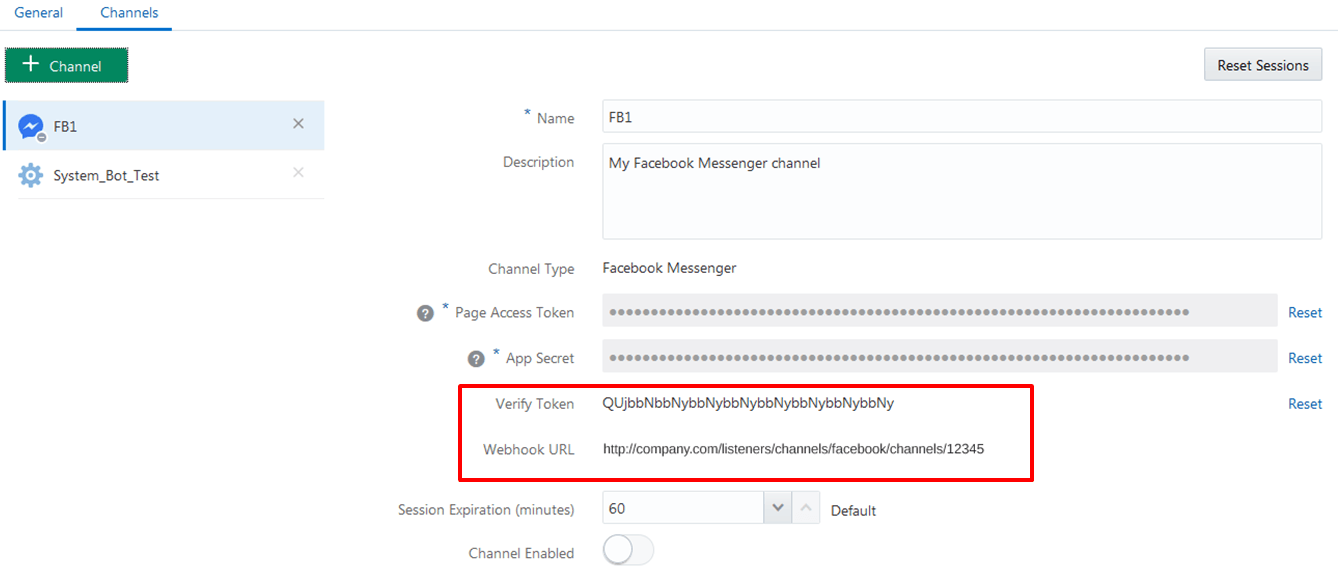
Description of the illustration fb-channel-complete.png
Step 3: Configure the Facebook Messenger Webhook
In Facebook Messenger, define the Callback URL using the Webhook URL generated by Digital Assistant in the previous step.
- In the Facebook Messenger console, go to the project that you initially created for the webhook.
- Select Messenger API Settings to open the Messenger API Setup page.
- In the CallBack URL field, paste the Webhook URL that you got from the Digital Assistant Channels page.
- In the Verify Token field in the Messenger console, paste the Verify Token from the Digital Assistant Channels page.
- In the Webhook fields section, select the messages and messaging_postbacks callback events.
- Click Verify and Save.
- Subscribe to the page:
- In the Generate access tokens section of the Messenger API Setup page, select the Facebook page for your channel.
- Click Add Subscription.
- In the Edit Page Subscriptions dialog, verify that messages and messaging_postbacks are selected, and click Confirm.
Step 4: Enable the Facebook Channel
With the configuration complete, you’re ready to activate the Facebook channel.
- In Digital Assistant, select the channel and switch on the Channel Enabled control.
- Click
 and select the digital assistant or skill that you want to associate with the channel.
You can now test the bot through the channel.
Step 5: Test Your Bot on Facebook Messenger
With the Facebook Channel and messaging configuration complete, you can test your bot using your Facebook page, Facebook Messenger (https://www.messenger.com/) and the Facebook Messenger app on your device.
- Go to
https://www.messenger.com/. - Within the Messenger interface, enter the name of your page to search for the page.
- Start chatting with your digital assistant (or standalone skill).
Persistent Menu
Facebook Messenger enables you to create a persistent menu next to its Message field. See https://developers.facebook.com/docs/messenger-platform/send-messages/persistent-menu/ for details on the feature.
Here's an example that shows persistent menu items for "Order Pizza" and "Order Pasta":
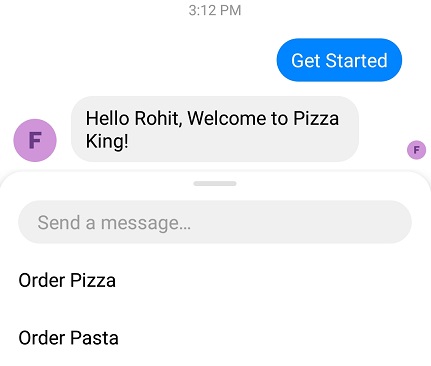
Create a Persistent Menu Item
To add persistent Facebook menu items for a digital assistant or a standalone skill, you do the following:
- Make sure that you have all of the prerequisites in place, including a get started button.
Those prerequisites are listed here: https://developers.facebook.com/docs/messenger-platform/send-messages/persistent-menu/#requirements
- Add an action for each menu item in the Facebook persistent menu's
call_to_actionsarray, as generally described at https://developers.facebook.com/docs/messenger-platform/send-messages/persistent-menu/#set_menu. - Set the persistent menu items with a POST call to the Messenger Platform API.
The request URI is
https://graph.facebook.com/v2.6/me/messenger_profile?access_token=<PAGE_ACCESS_TOKEN>, where<PAGE_ACCESS_TOKEN>is the page access token for your Facebook app.
Persistent Menu Items for a Digital Assistant
Here's the format of the POST to the Messenger Platform API for adding persistent Facebook menu items for a digital assistant:
{
  "persistent_menu":[
    {
      "locale":"default",
      "composer_input_disabled": false,
      "call_to_actions":[
            {
              "title":"menu item display name",
              "type":"postback",
              "payload":"{\"action\":\"system.textReceived\",\"variables\": {\"system.text\": \"utterance that contains the skill's invocation name\"}}"
            }
          ]
    }
  ]
}
For the payload, you use a system.textReceived action that passes an utterance from Facebook Messenger to the digital assistant via a system.text variable. That utterance should contain the invocation name of the target skill (i.e. be an explicit invocation) in order to ensure proper routing.
Here's an example of creating two persistent menu items for your skill in Facebook Messenger ("Order Pizza" and "Order Pasta"):
{
  "persistent_menu":[
    {
      "locale":"default",
      "composer_input_disabled": false,
      "call_to_actions":[
            {
              "title":"Order Pizza",
              "type":"postback",
              "payload":"{\"action\":\"system.textReceived\",\"variables\": {\"system.text\": \"Order pizza from Pizza Joe \"}"
            },
            {
              "title":"Order Pasta",
              "type":"postback",
              "payload":"{\"action\":\"system.textReceived\",\"variables\": {\"system.text\": \"Order pasta from Pizza Joe \"}"
            }
          ]
    }
  ]
}
Persistent Menu Items for a Standalone Skill
Here's the format of the POST to the Messenger Platform API for adding persistent Facebook menu items for a standalone skill:
{
  "persistent_menu":[
    {
      "locale":"default",
      "composer_input_disabled": false,
      "call_to_actions":[
            {
              "title":"menu item display name",
              "type":"postback",
              "payload":"{\"action\":\"action name\",\"variables\": {}"
            }
          ]
    }
  ]
}
The payload is the name of the event that is mapped to the flow that you want to be triggered in the skill's dialog flow.
And then you'd reference that help action in the Facebook persistent menu.
{
  "persistent_menu":[
    {
      "locale":"default",
      "composer_input_disabled": false,
      "call_to_actions":[
            {
              "title":"Help",
              "type":"postback",
              "payload":"{\"action\":\"help\",\"variables\": {}"
            }
          ]
    }
  ]
}
Supported Capabilities
Facebook Messenger channels in Digital Assistant support the following capabilities:
- text (both sending and receiving)
- images (both sending and receiving)
- files (both sending and receiving)
- emojis (both sending and receiving)
- location, but deprecated (both sending and receiving)
- links
- postbacks
- location requests
- custom properties
- carousel components
- list components
If you are targeting your skill to multiple channels with different formatting capabilities and syntax, you can use basic HTML markup in your messages. If you do so, that markup will be automatically converted to Facebook Messenger's markdown format when the message is transmitted to the channel. This is particularly useful if you are targeting your skills to other channels in addition to Facebook Messenger. See Rich Text Formatting in Channels.
Message Constraints
Facebook Messenger channels in Digital Assistant have the following message constraints:
- Text Messages
- Maximum length of text message: 640 characters. If the length exceeds 640, the text is split over multiple messages.
- Maximum length of text action label: 20 characters
- Types of text actions allowed: Postback, Call, URL
- Maximum number of text actions: 3. If there are more text actions, the message is converted to multiple horizontal cards, with the same text used as the title on each card, and each card containing up to 3 actions.
- Horizontal Cards
- Maximum length of title: 80 characters
- Maximum length of description: 80 characters
- Maximum length of card action label: 20 characters
- Maximum number of cards: 10
- Maximum number of card actions: 3. If the number of card actions exceeds 3, the card is duplicated to render remaining card actions.
- Minimum number of card actions: 0
- Maximum number of card list actions: 0
- At least one description, image or action required?: Yes
- Types of card actions allowed: Postback, Call, URL, Share
- Types of card list actions allowed: N/A
- Vertical Cards
- Not supported
- Attachment Messages
- Supported?: Yes
- Attachment actions allowed?: No
- Action Buttons
- Maximum length of global action label: 20 characters
- Maximum number of global actions: 11
- Types of global actions allowed: Postback
Facebook Messenger Channel Extensions
For Facebook Messenger channels, you can extend the functionality of Common Response components with capabilities that are specific to Facebook.
You access the extensions by using the channelCustomProperties
element in the Common Response component's metadata and setting the appropriate properties.
The code has the following format:
...
            channelCustomProperties:
            - channel: "facebook"
              properties:
                PROPERTY_NAME: "PROPERTY_VALUE"
...
Here are the available custom properties for Facebook Messenger channels:
| Property Name | Allowed Values | Applies To... | Description |
|---|---|---|---|
top_element_style |
|
Response items with the following attributes:
|
Determines how the image of the first card is rendered. See https://developers.facebook.com/docs/messenger-platform/send-messages/template/list/#cover_image for details.
If not specified, Oracle Digital Assistant defaults this property to |
image_aspect_ratio |
|
Response items with the following attributes:
|
The aspect ratio used to render images. Defaults to horizontal (1.91:1). square sets the aspect ratio to 1:1 . See https://developers.facebook.com/docs/messenger-platform/reference/template/generic#attachment |
sharable |
|
Response items of type cards.
|
Set to true to enable the native share button in Messenger for the template message. Defaults to false. See https://developers.facebook.com/docs/messenger-platform/reference/template/generic#attachment |
webview_height_ratio |
|
Either of the following:
|
Height of the webview that is opened when the URL button is tapped or the height of the card with url property specified is tapped. See https://developers.facebook.com/docs/messenger-platform/reference/buttons/url#properties |
messenger_extensions |
|
Either of the following:
|
Messenger Extensions gives you the ability to tightly integrate experiences in the webview with the Messenger experience by making added functionality accessible in the webview. See https://developers.facebook.com/docs/messenger-platform/reference/messenger-extensions-sdk |
fallback_url |
A valid URL | Either of the following:
|
The URL to use on clients that don't support Messenger Extensions . If this is not defined, the url will be used as the fallback. It may only be specified if messenger_extensions is true. See https://developers.facebook.com/docs/messenger-platform/reference/buttons/url#properties |
webview_share_button |
|
Either of the following:
|
Set to hide to disable the share button in the webview (for sensitive info). This does not affect any shares initiated by the developer using Extensions.
|
share_contents |
The format follows that used in the Facebook Messenger Send API |
|
The message that you wish the recipient of the share to see, if it is different from the one this button is attached to. See https://developers.facebook.com/docs/messenger-platform/reference/buttons/share#properties |
Here is an example of custom properties defined at the response item level (top_element_style) and the cards level (webview_height_ratio and fallback_url):
responseItems:
  - type: "cards"
    cardLayout: "vertical"
    cards:
      - title: "${pizzas.name}"
        description: "${pizzas.description}"
        imageUrl: "${pizzas.image}"
        url: "${pizzas.moreInfo}"
        iteratorVariable: "pizzas"
        channelCustomProperties:
          - channel: "facebook"
            properties:
              webview_height_ratio: "compact"
              fallback_url: "http://www.oracle.com"
    channelCustomProperties:
      - channel: "facebook"
        properties:
          top_element_style: "large"
...
For more general information on channelCustomProperties, see Channel-Specific Extensions.